
| 
|
 Upload the image to IMGBB site.
Open file browser on your computer and point to folder with chosen images. After clicking the button below, you open in new window the IMGBB site. Then you select the image in your file browser and using mouse, you will drag the image and drop it on the IMGBB page.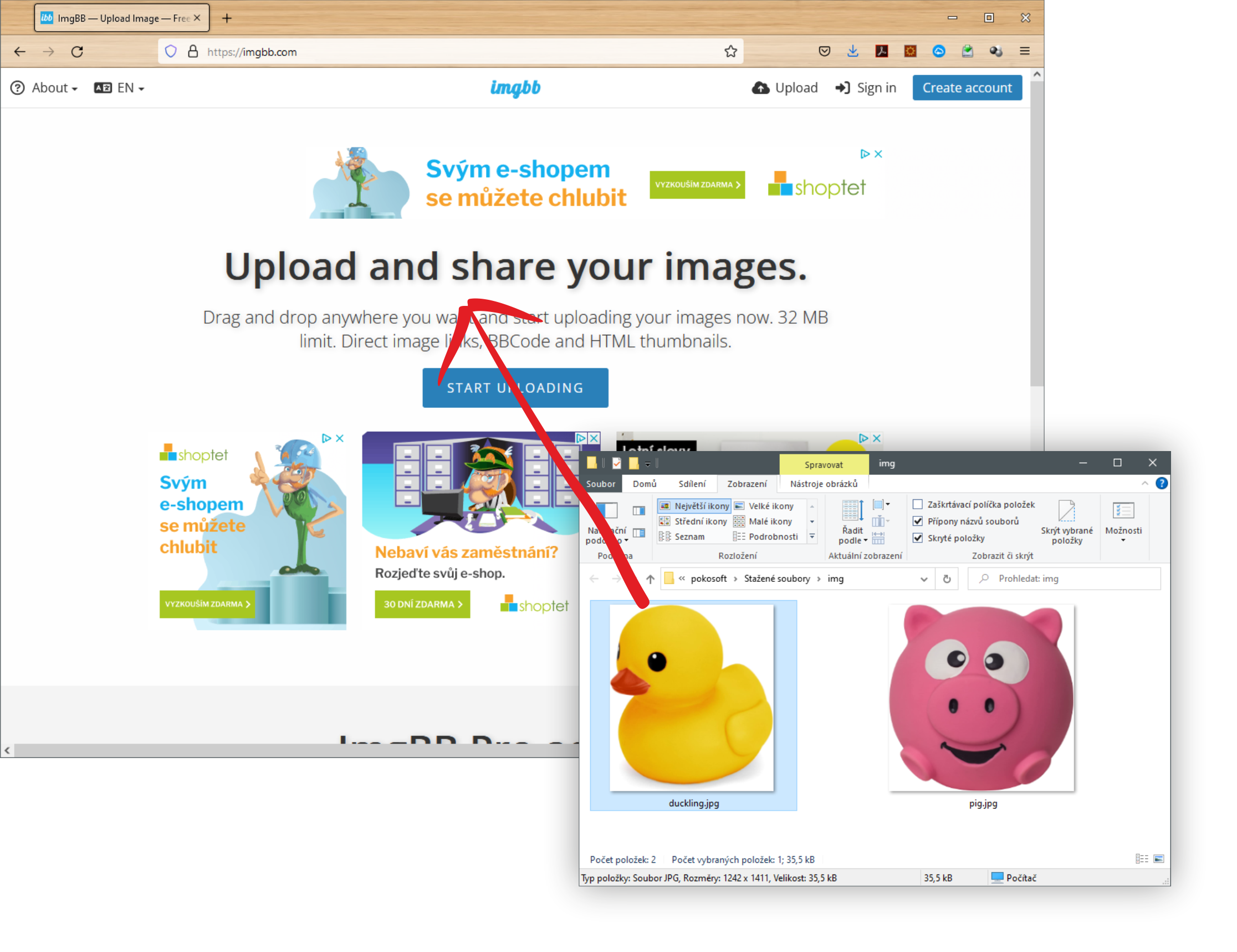
|
After dropping the file, page will change and you finish the upload process by clicking button UPLOAD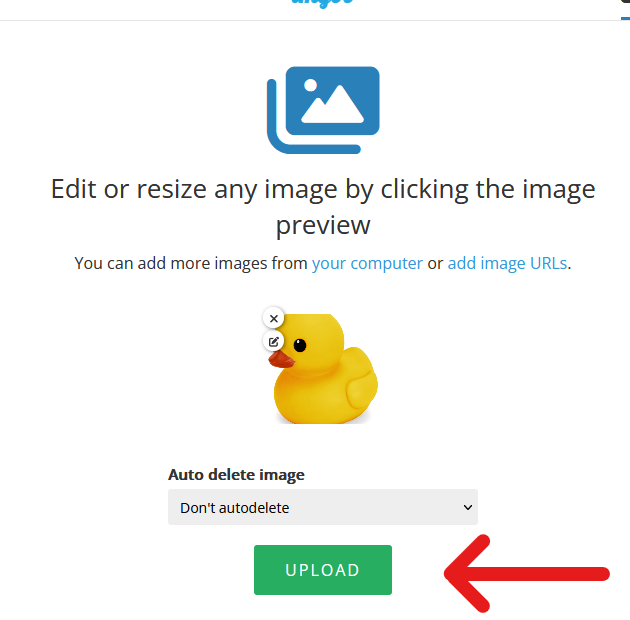
|
Once uploaded, the confirmation page will show, allowing you to copy the image address. Copy it to clipboard either by using button on page, or by pressing + 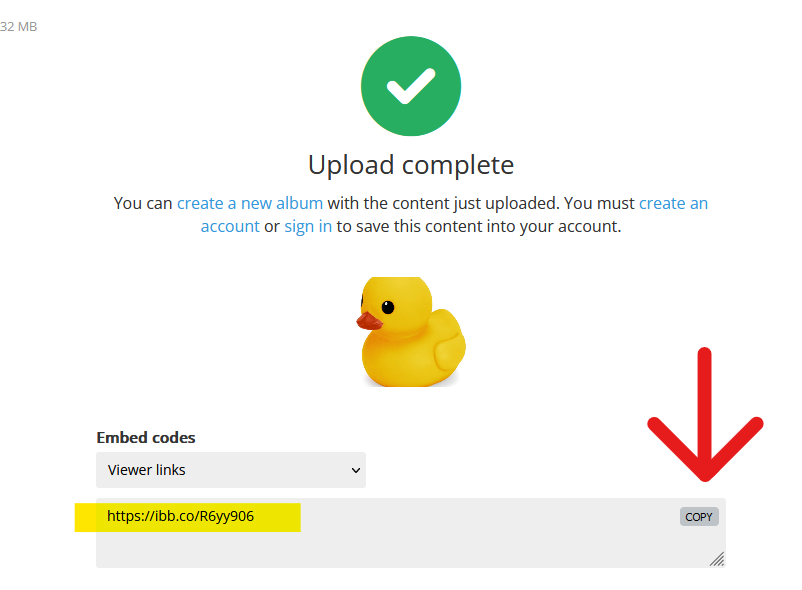
|
 Paste the generated address to the Address: field below and click on Generate button
You can paste any text (for example "QR codes are FUN!!!") or internet address. Either address of uploaded image (for example https://ibb.co/R6yy906), or address of Your school website (for example https://eduup.cz/en/), or Youtube video (for example https://www.youtube.com/watch?v=qDVXMz-Hqu4) or any others. Just open anything in your internet browser, copy the whole address from the top address bar of the browser and paste here.
 Print the QR code using the Print Code button or save it to disk using Save Code button
That's all, Let's go:
|
Open ImgBB site and upload image |
Paste resulting image address here and click Generate |